Voice-to-text is especially handy when you’re on the go or need to multitask. With just a tap, your Galaxy S25 can accurately transcribe your spoken words, making communication faster and more accessible. In this guide, we’ll walk you through how to enable Galaxy S25 voice-to-text, explore different voice-to-text engines, and share tips to help you get the most out of your device’s speech recognition capabilities.

How to Enable Voice to Text on Samsung Galaxy S25
Follow these steps to activate and use the voice-to-text (voice typing) feature on your Samsung Galaxy S25:
- Open Settings: Go to your device’s main Settings menu.
- Navigate to General Management: Scroll down and tap on General Management.
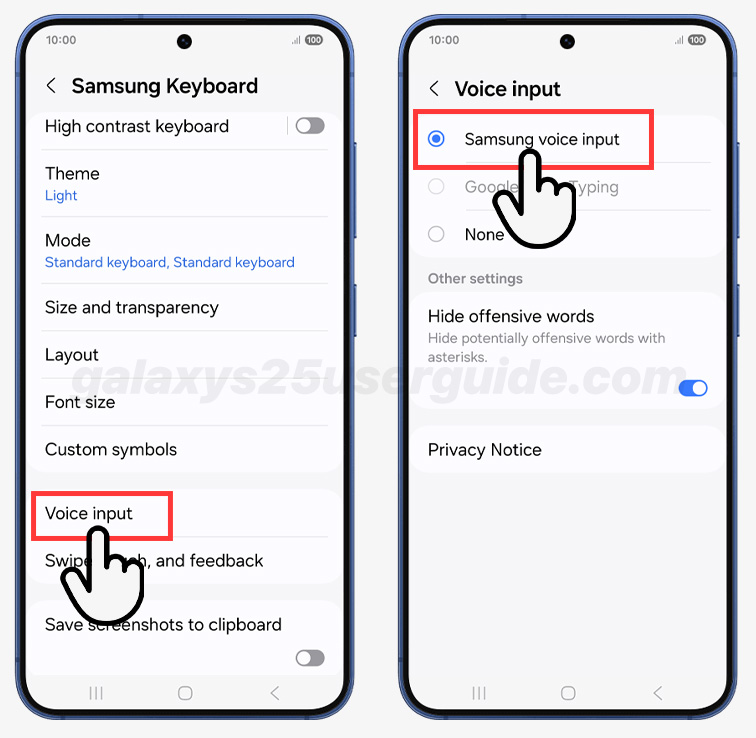
- Access Samsung Keyboard Settings: Select Samsung Keyboard Settings.

- Enable Voice Input: Tap on Voice Input. Here, you can choose between Google Voice Typing or Samsung Voice Input. Select your preferred option to enable it.
- Use Voice Typing in Any App: Open any app where you can type (such as Messages, Notes, or Google Docs). When the keyboard appears, look for the microphone icon—usually at the bottom left or right of the keyboard. Tap the microphone icon and start speaking. Your speech will be converted to text in real time.
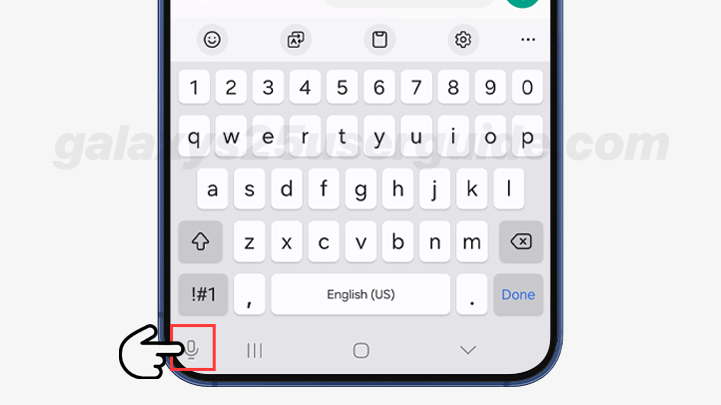
- Quick Access Tip: If you want the microphone to always be easily accessible, you can long-press the microphone icon and set it for quick access.
- Switching and Stopping: To stop voice input, tap the microphone icon again. You can switch back to the regular keyboard at any time.
With these steps, you can quickly enable and use voice-to-text on your Samsung Galaxy S25 for hands-free typing.
Why Use Voice to Text on Your Galaxy S25?
Utilizing the Galaxy S25 Voice to Text feature can dramatically improve your efficiency. Dictating messages or notes is much faster than typing, especially for longer texts.
This feature is invaluable for busy professionals, students, or anyone who wants to communicate quickly without being tethered to a keyboard.
Voice-to-text also enhances accessibility, making it easier for users with mobility challenges or visual impairments to interact with their device.
It’s perfect for hands-free operation—whether you’re driving, cooking, or simply multitasking. The convenience and speed of speech-to-text can transform how you use your smartphone every day.
Can I Use Different Voice-to-Text Engines on the Samsung S25?
Yes, the Galaxy S25 gives you the flexibility to choose between different voice-to-text engines. The two primary options are Google Voice Typing and Samsung Voice Input. The device integrates both options, allowing you to select them according to your preferences or needs.
To switch between these engines, navigate to your keyboard settings as described above. Under the Voice Input section, simply select the engine you want to use.
Google Voice Typing is known for its accuracy and wide language support, while Samsung Voice Input offers a seamless experience with Samsung’s ecosystem.
You can experiment with both to see which one best suits your style and requirements.
How Can I Improve the Accuracy of Voice-to-Text on My Phone?
To get the most accurate results from your Galaxy S25 Voice to Text, there are a few best practices to follow. First, speak clearly and at a moderate pace.
Avoid background noise when possible, as this can interfere with the microphone’s ability to pick up your words accurately.
Holding the phone closer to your mouth can also help, especially in noisy environments.
Make sure your device’s software is up to date, as updates often include improvements to voice recognition.
You can also customize your voice input settings, such as language and accent preferences, to better match your speaking style.
If you frequently use specialized vocabulary or names, adding them to your device’s dictionary can further enhance accuracy.
Troubleshoot Common Issues
If you encounter issues with Galaxy S25 Voice to Text, there are several troubleshooting steps you can try.
First, ensure your device is running the latest software version, as outdated firmware can cause compatibility problems.
Restarting the app or your phone can resolve minor glitches that may be affecting the microphone or keyboard.
If the microphone icon is missing or unresponsive, double-check that voice input is enabled in your keyboard settings.
Sometimes, clearing the cache of the keyboard app or resetting keyboard settings can resolve persistent issues.
If you’re still having trouble, switching between Google Voice Typing and Samsung Voice Input may help, as one engine might perform better than the other depending on your environment and usage.
By following these steps, you can enjoy a smooth and efficient voice-to-text experience on your Samsung Galaxy S25, making everyday communication faster and more convenient than ever before.